
Building and Deploying Skills
Overview
A skill is a packaged, repeatable procedure your assistant can execute: a manifest that declares inputs and outputs, a markdown playbook that tells the model what to do, and optionally scripts and resource files the skill uses while it runs. Skills run in an isolated workspace with a controlled set of tools, stream their progress live, and can pause to ask the user clarifying questions.
Aimable ships a set of platform skills that are available to every tenant out of the box. As a tenant admin you can additionally build and deploy your own tenant skills: they are visible only inside your tenant and can shadow a platform skill with the same slug.
Deployment and space wiring happen in the Aimable Console, under Skills Catalog in the admin sidebar. Everything the Console does is also available through the Admin API — see Automating with the Admin API at the end.
Anatomy of a skill bundle
A skill is a zip archive with one required file — SKILL.md — and two
optional directories:
my-skill/
├── SKILL.md        # required: YAML frontmatter + markdown playbook
├── resources/      # optional: static files the playbook references
└── scripts/        # optional: Python scripts — platform-managed skills only, see below
Tenant skills are markdown-only. On shared (multi-tenant)
environments, skills that ship executable code — a scripts/ directory or
sandbox.code_exec: true in the manifest — can only be deployed by Aimable
platform admins. A tenant import containing code is rejected at upload.
Your playbook can still do a lot with the built-in tools (read and write
workspace files, fetch URLs, invoke sub-skills); if your use case needs
custom code, contact Aimable and we ship it as a platform-managed skill for
your tenant.
SKILL.md has two parts. The frontmatter (YAML between --- markers)
declares what the skill is and what it needs. The body is the playbook:
the instructions the model follows when the skill runs.
---
slug: transition-payment
name: Transition Payment Calculator
version: 1.0.0
description: Calculate the Dutch statutory transition payment for an employee
intent: Compute a transition payment from salary and employment dates
inputs:
  monthly_salary:
    type: number
    required: true
  start_date:
    type: string
    required: true
  end_date:
    type: string
    required: true
outputs:
  report:
    type: markdown
    required: true
allowed_tools:
  - workspace.fs.read
  - workspace.fs.write
allow_mid_run_clarification: true
---

# Transition Payment Calculator

You are given a monthly salary and an employment period.

1. Compute the length of service in years (fractional).
2. Apply the statutory formula from `resources/rules.md` to get the exact
   amount.
3. Write a short markdown report to `outputs/report.md` explaining the
   calculation, and commit it as an artifact.
Frontmatter fields
| Field | Required | Meaning |
|---|---|---|
slug | yes* | Stable identifier. 2–64 chars, kebab-case (^[a-z][a-z0-9-]*[a-z0-9]$). |
name | yes | Display name shown in the Workbench and the slash-command menu. |
version | yes* | Strict semver (1.0.0). Each version is immutable once deployed. |
description | yes | One-liner shown on the skill card and in the slash menu. |
intent | yes* | What the skill does and why — used by the model to decide when to invoke it from chat. |
inputs | yes* | Input schema (JSON-Schema subset: string, number, boolean, enum, array, markdown). Drives the run form in the Workbench. |
outputs | yes* | Output schema, same type set. |
allowed_tools | no | Tools the skill may call (defaults to the workspace set: workspace.fs.*, web.fetch). |
allowed_skills | no | Slugs of other skills this skill may invoke as sub-skills. |
clarifying_questions | no | Pre-run questions to fill missing inputs — see Clarifying Questions. |
allow_mid_run_clarification | no | Let the skill pause mid-run to ask the user a question (default false). |
sandbox | no | Network policy for the run, e.g. network: deny. Setting code_exec: true is reserved for platform-managed skills — see the callout above. |
* Fields marked with an asterisk can be omitted in lenient mode: slug is
derived from name, version defaults to 0.0.0, intent is copied from
description, and inputs/outputs default to empty. Declare them explicitly
for anything you intend to maintain.
What a running skill can do
Inside its workspace the skill gets an inputs/ directory (including any files
the user attached), a scratch/ working area, and an outputs/ directory.
Depending on allowed_tools it can read and write files, fetch URLs, invoke
sub-skills, and commit artifacts — files the user can download from the
run afterwards (reports, spreadsheets, documents). Sandboxed Python execution
exists too, but only for platform-managed skills deployed by Aimable.
Import the skill in the Console
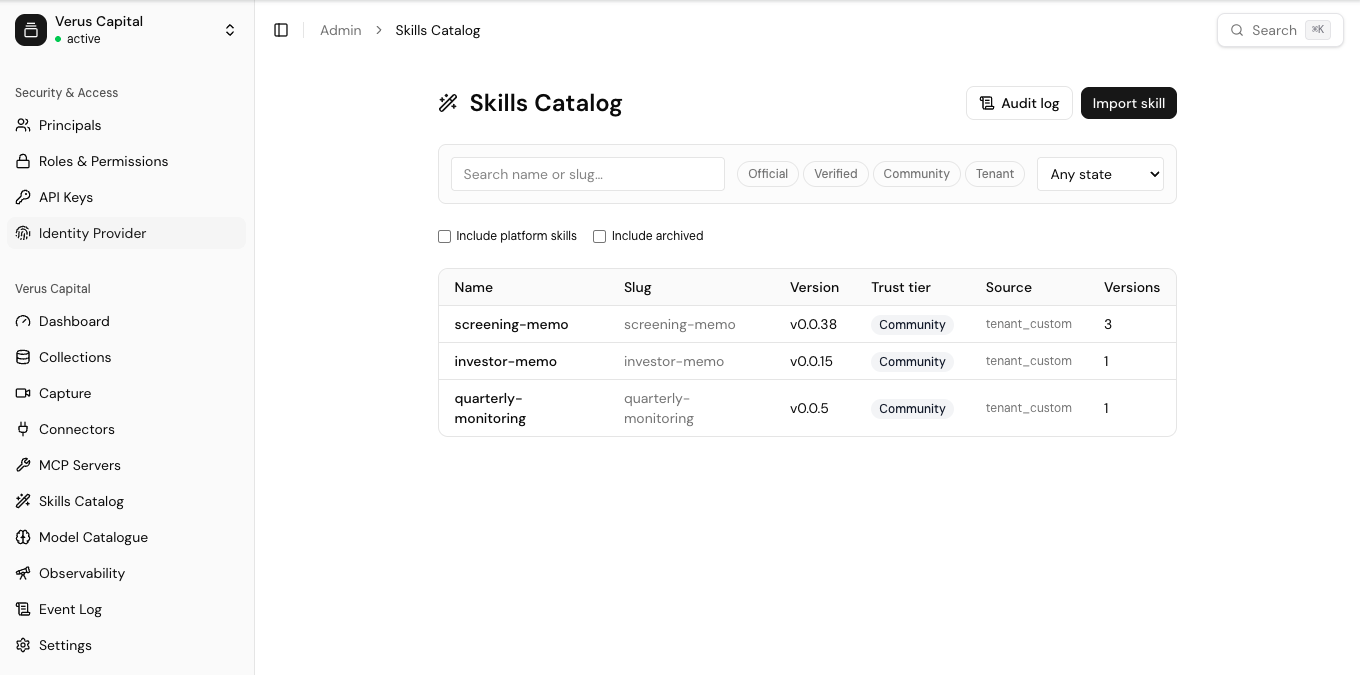
Open the Console and go to Skills Catalog in the admin sidebar. The catalog lists every skill in your tenant — filter by trust tier or state, search by name or slug, and tick Include platform skills to see the platform catalogue alongside your own.
To deploy:
-
Zip the bundle so that
SKILL.mdsits at the root of the archive (zip the folder's contents, not the folder):cd my-skill && zip -r ../my-skill.zip . && cd .. -
Click Import skill (top right). In the dialog, drop your
.zipor.skillbundle — or click to choose a file. Bundles up to 256 MB are accepted. -
Click Start import. The Console uploads the bundle and shows the progress: "Validating manifest → packaging → registering…". On success you get a toast — "Skill imported: Transition Payment Calculator v1.0.0" — and the skill appears in the catalog with trust tier tenant.
If validation fails, the dialog shows the error and a Retry button. The common causes:
SKILL.mdnot at the zip root — it must not sit inside a subdirectory.- Slug or version format — slug must be kebab-case, version strict semver.
- Duplicate version — versions are immutable; re-uploading changed content under the same version number is rejected. Bump the version instead.
- Bundle ships code — on shared environments a tenant import containing a
scripts/directory orsandbox.code_exec: trueis rejected. Remove the code, or contact Aimable to deploy it as a platform-managed skill. - Bundle safety — archives containing symlinks, absolute paths, or
../path traversal are rejected, as are.tar.gzfiles (zip only).
A successful import can still carry warnings — for example a reference to a tool that doesn't exist in your tenant yet. These don't block the import but are worth checking before you enable the skill anywhere.
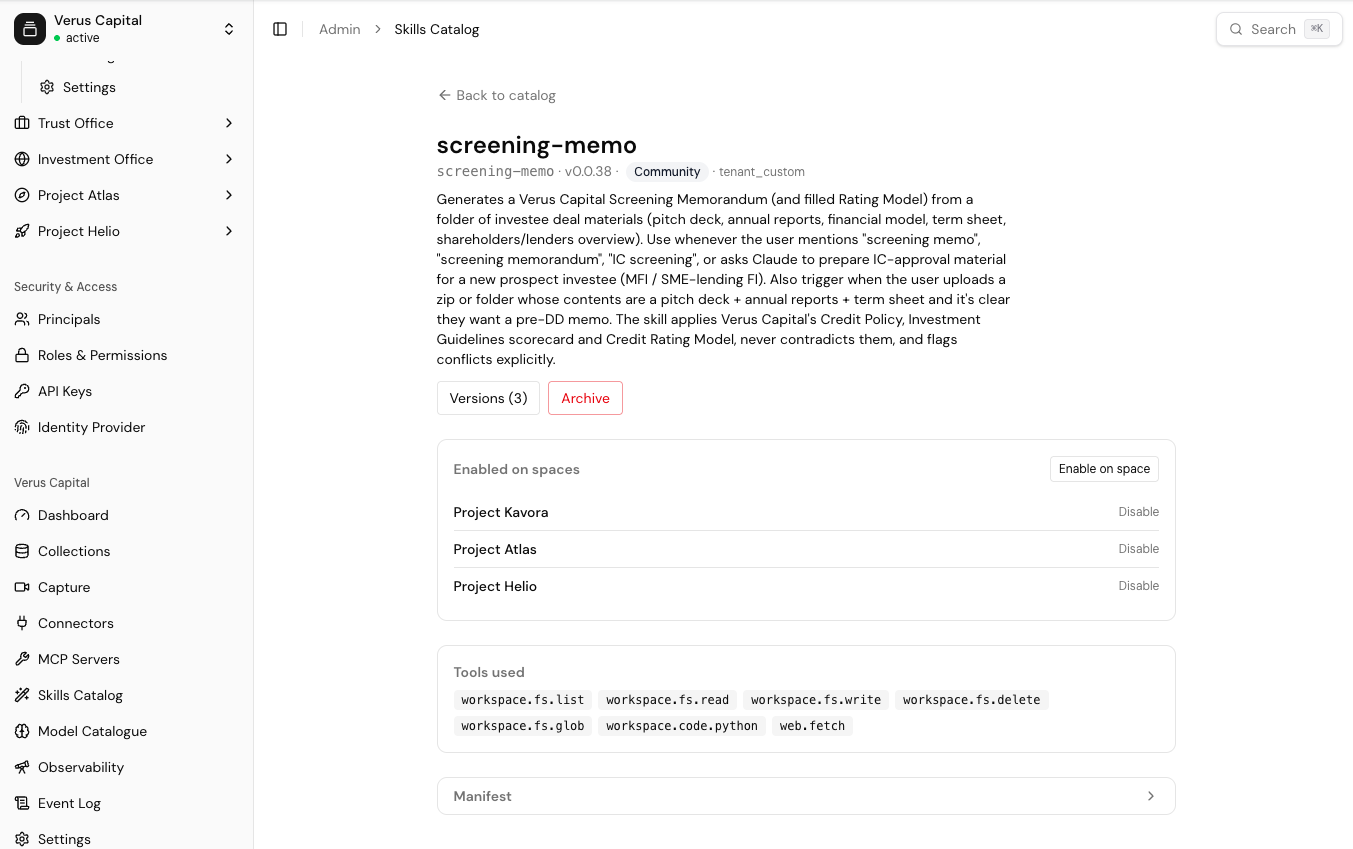
Clicking the imported skill opens its detail page: the header shows slug, version, trust tier and source; below it you find the tools the skill uses, the full manifest, and the two panels you'll use next — Versions and Enabled on spaces.
Connect the skill to spaces
Importing puts a skill in your tenant catalogue, but users only see skills that are enabled in their space. You can wire that up from either side:
From the skill — on the skill's detail page, the Enabled on spaces panel lists where it is live. Click Enable on space, pick the space, and you're done. Each entry has a Disable link to switch it off again.
From the space — open the space's configuration and go to the Skills tab. You get the full tenant catalogue with a checkbox per skill:
Enable or disable skills for this space. Skills hidden at the tenant level cannot be enabled here.
Tick to enable, untick to disable. Skills you've hidden tenant-wide show a tenant-hidden badge and can't be enabled.
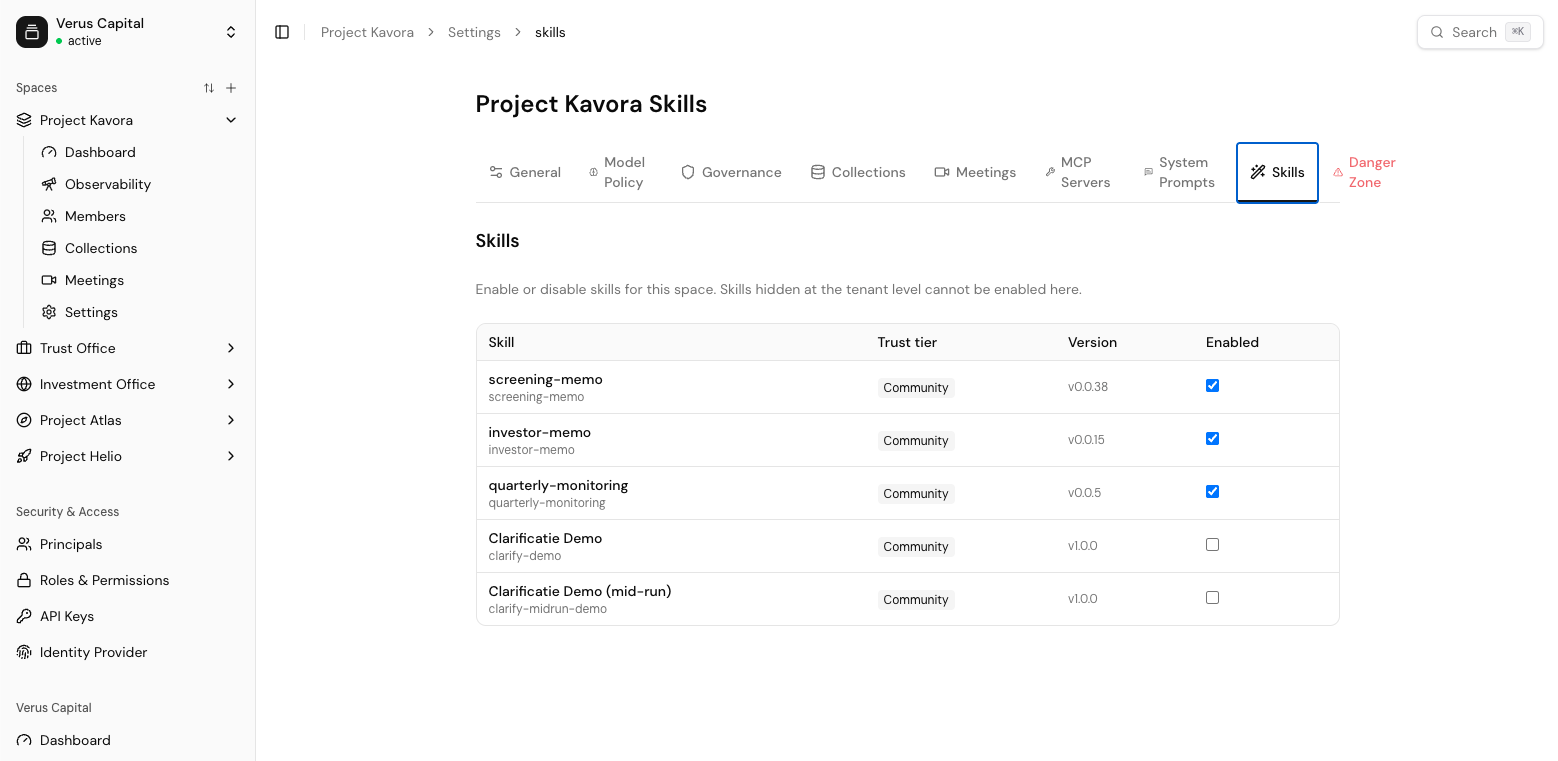
From that moment the skill appears on the space's Skills page in the Workbench, in the sidebar, and in the chat slash-command menu — see Using Skills.
Versions
Versions are immutable, so changes always ship as a new semver. Bump
version in SKILL.md, re-zip, and run Import skill again with the same
slug — the bundle is registered as a new version of the existing skill.
By default every space resolves the latest active version, so shipping a new version updates all spaces automatically. The Versions page (via the Versions (N) button on the skill detail page) gives you control when you need it:
- Each version row shows its status badge (active, deprecated, or draft), release date and checksum.
- Diff vs v[previous] opens a side-by-side manifest comparison, so you can review exactly what changed between two versions.
- Deprecate retires an active version. A confirmation modal first shows the impact: which spaces are pinned to this version and will see a deprecation warning. Deprecation is graceful — pinned spaces keep running until you change their pin.
- Activate re-activates a draft or previously deprecated version (your rollback path: deprecate the bad version, activate the previous one).
Version pinning
If a space must stay on a known version — say, during a validation period — pin it when enabling the skill on that space. A pinned space shows "v1.2.3 (pinned)" in the space's Skills tab and keeps running that exact version regardless of newer releases, until you change or clear the pin.
Curating platform skills
Platform skills can't be edited or deleted by a tenant, but you can curate what your users see:
- Hide from tenant (on a platform skill's detail page) removes it from your tenant's catalogue and every space. The skill stays published for other tenants. Unhide restores visibility — but spaces don't auto-re-enable; admins must turn it back on per space.
- Archive (on your own tenant skills) soft-deletes the skill: it disappears from the catalog until un-archived, while existing space enablements remain.
Auditing skill runs
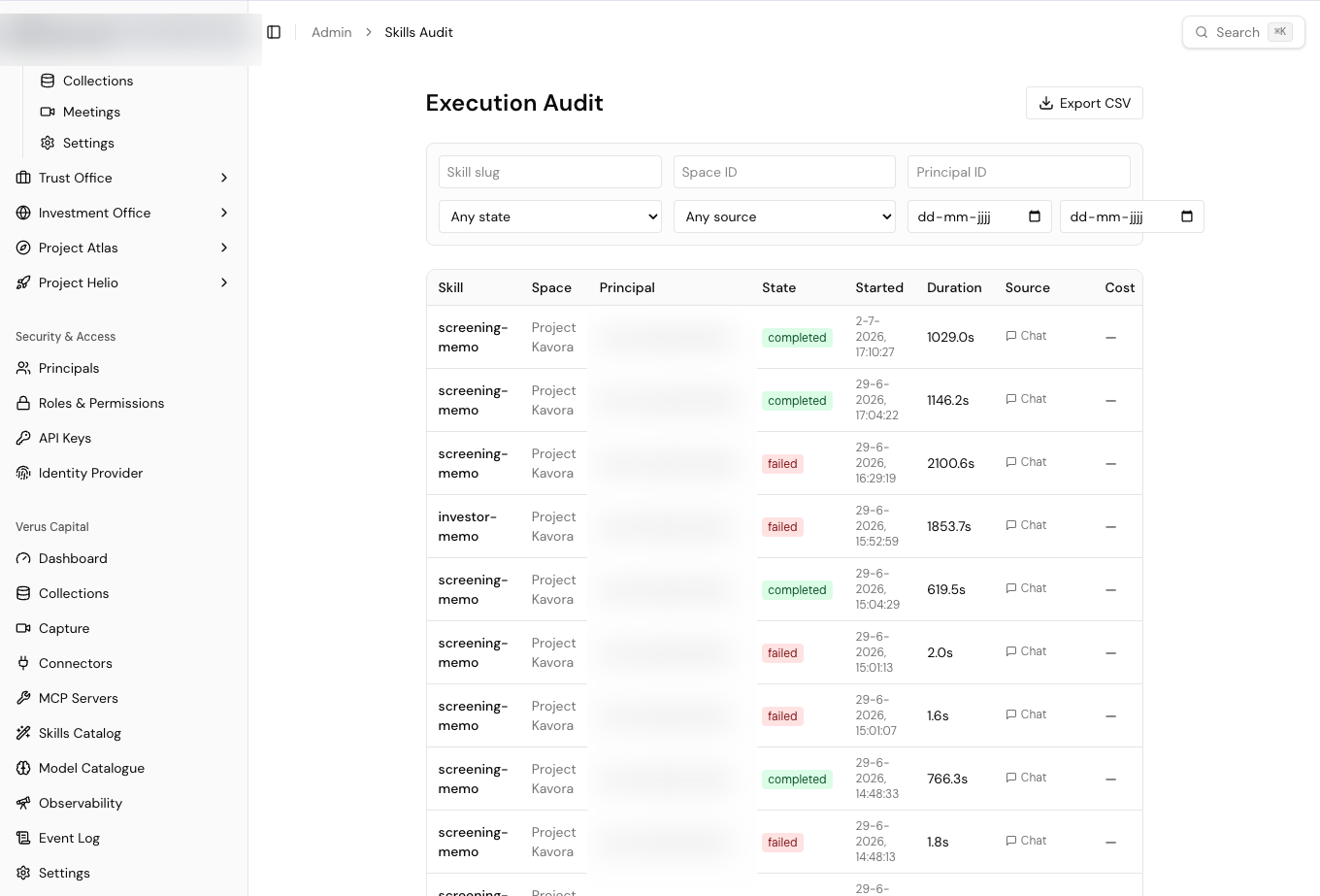
The Audit log button on the catalog page opens the Execution Audit: every skill run in your tenant, filterable by skill, space, user, state, source (standalone, chat, or sub-invocation) and date range. Each row shows duration and cost; opening a run shows its inputs, outputs, artifacts, a tool-call timeline and a cost breakdown — and for chat-initiated runs, a link to the originating thread. Export CSV downloads up to 10,000 rows for reporting.
Who can do what
| Task | Requires |
|---|---|
| Import, version, archive, and hide skills (tenant catalogue) | Tenant-admin privileges |
| Enable, pin, and disable skills in a space | Space-admin privileges for that space |
| View the tenant-wide execution audit | skills.execution.view.any (tenant admins have it by default) |
| Run a skill, see own runs | Any space member (in the Workbench) |
Automating with the Admin API
Everything above is scriptable. $ADMIN is a tenant-admin credential and
$BASE is your per-tenant gateway base —
https://<your-tenant>.aimable.ai/api-proxy:
# Import a bundle (also used to ship a new version of an existing slug)
curl -X POST "$BASE/v1/admin/skills/import" \
  -H "X-API-Key: $ADMIN" \
  -F "mode=zip" \
  -F "bundle=@my-skill.zip"

# Enable in a space (add "pinned_version_id" to pin)
curl -X POST "$BASE/v1/admin/spaces/$SPACE_ID/skills" \
  -H "X-API-Key: $ADMIN" \
  -H "Content-Type: application/json" \
  -d '{ "skill_id": "<skill_definition_id>" }'
The rest of the surface mirrors the Console: GET /v1/admin/skills (catalog),
POST /v1/admin/skills/{id}/versions/{version_id}/activate and
…/deprecate (lifecycle), PATCH/DELETE /v1/admin/spaces/{space_id}/skills/{skill_id} (pin/unpin, disable),
POST /v1/admin/skills/hidden (hide a platform skill), and
GET /v1/admin/skills/executions (audit). Import also supports
mode=url with a source_url form field to pull a bundle from a public URL.
Recap: build a bundle around SKILL.md, import it via
Skills Catalog → Import skill, enable it per space from the skill's
detail page or the space's Skills tab, and ship changes as new immutable
versions. Your users can now find it in their space — see
Using Skills.