
Using Skills
Overview
A skill is a ready-made procedure your workspace admin has enabled for your space — anything from "calculate a transition payment" to "summarise these documents into a report". You give it inputs, it runs step by step, and it comes back with results and downloadable files. This guide shows where skills live in the Workbench and how to run them.
Skills are per space: you only see the skills an admin has enabled in the space you are working in. If the Skills page says "No skills enabled in this space", ask your space admin — see Building and Deploying Skills.
Finding skills
There are three places skills show up:
- The Skills page. Open Skills from the sidebar (or the View all link next to the skill shortcuts). Each card shows the skill's name, version, description, and a Run button.
- The sidebar. Under your space name, a row of skill shortcuts gives one-click access to the skills in the space.
- The chat composer. Type
/in the message box to open the skill menu. Keep typing to filter by name or description, use the arrow keys, and press Enter to pick one.
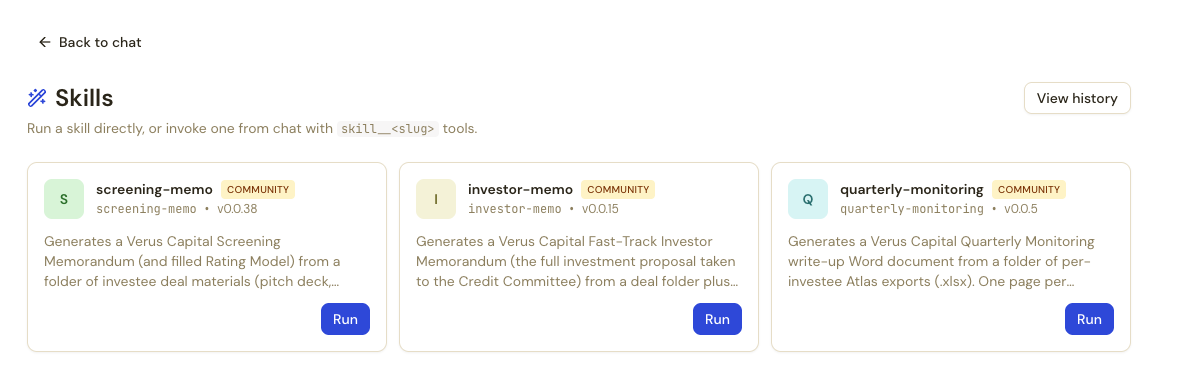
Running a skill from chat
The quickest way to run a skill is inline in a conversation. Type /, pick
the skill, and add your context in the same message:
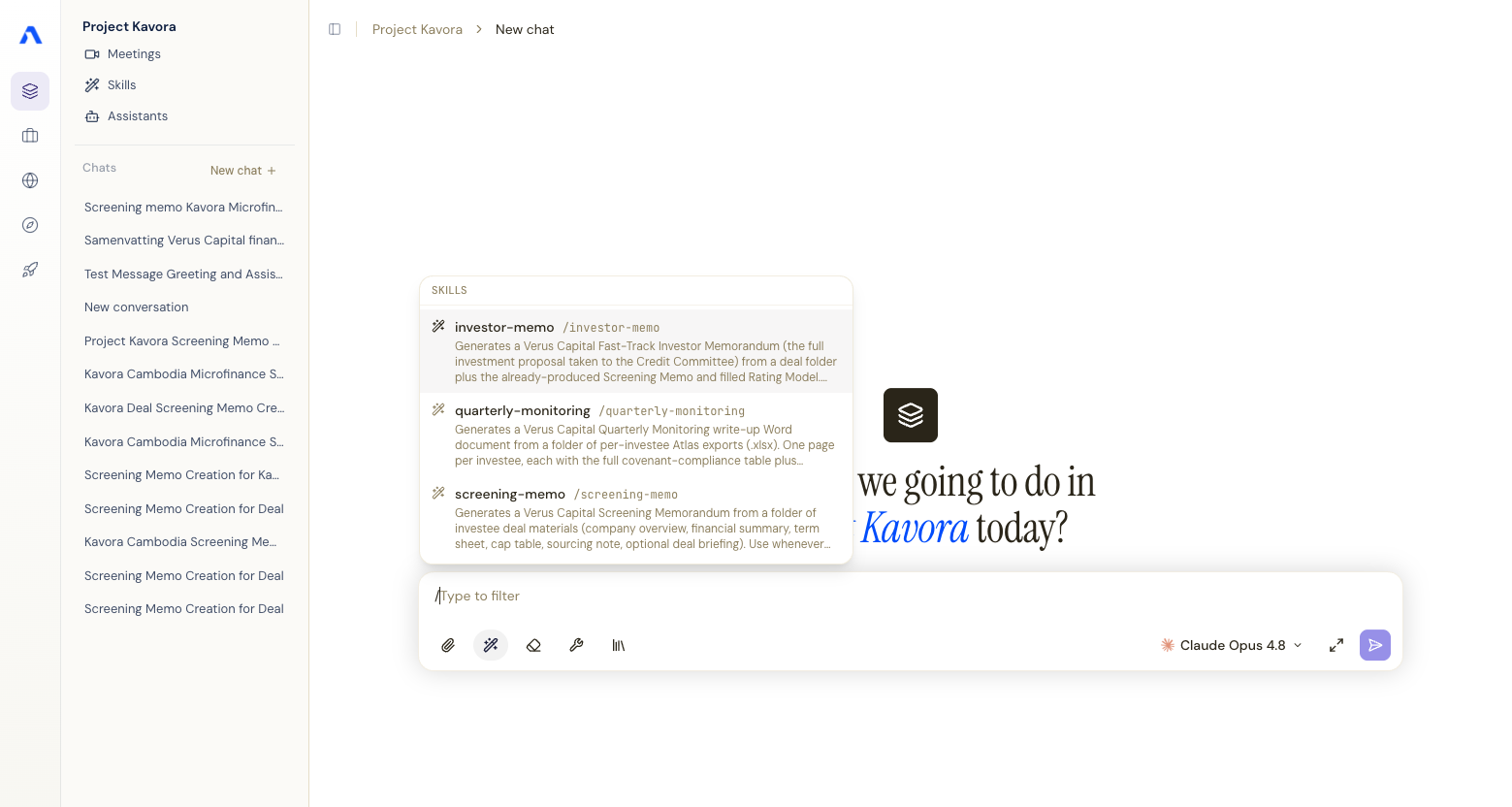
/transition-payment for an employee earning €3,800 who started March 2019 and leaves at the end of this month
The assistant invokes the skill and a skill card appears in the chat showing its progress. The card's header gives a one-line status ("Running…", then a summary like "Ran 4 Python steps"); expand it to see every step the skill takes — files read and written, code executed, web requests — each with its inputs and results. When the run finishes, the assistant continues its reply using the skill's output, and any files the skill produced appear on the card as download chips.
Running a skill from the Skills page
For skills with structured inputs, click Run on the skill's card. You get a form generated from the skill's definition:
- Fill in the inputs. Required fields are marked with
*. Fields can be text, numbers, checkboxes, dropdowns, or lists depending on the skill. - Attach files (if the skill accepts them) with the Attach files button — PDF, Word, text, markdown, and spreadsheet files are supported. The skill reads them from its workspace while it runs.
- Click Run skill.
The page switches to a live view of the run: a step list that grows as the skill works, exactly like the in-chat card. If the live connection drops, the Workbench falls back to refreshing every few seconds — you don't need to do anything.
When a skill asks you a question
Some skills need a decision only you can make. There are two moments this can happen (see Clarifying Questions for how skill authors set this up):
- Before the run — if required inputs are missing, a dialog asks for them first, as multiple-choice questions (some with an "Other…" free-text option).
- During the run — the skill pauses and a card appears above the chat composer: "The skill has a question."
In both cases you have three choices:
| Button | What happens |
|---|---|
| Continue | Submit your answer; the run resumes exactly where it paused. Pressing Enter does the same once all required questions are answered. |
| I don't know | Decline to answer; the skill continues and makes a sensible choice itself. |
| Cancel skill | Abort the run entirely. |
Results and downloads
When a run completes you get:
- Outputs — the skill's structured results, shown on the run page and used by the assistant when the skill ran from chat.
- Artifacts — files the skill produced (reports, spreadsheets, documents), shown as chips with the filename and a download button.
Artifacts have a retention period. An expired artifact shows greyed out with the note "Artifact expired — retention exceeded" — re-run the skill to regenerate it.
Run history
Click View history on the Skills page to see past runs in your space. You can filter by skill, state (completed, failed, cancelled, …), and date, and open any run to inspect its full detail: the inputs it received, every step it took, its outputs, artifacts, and resource usage.
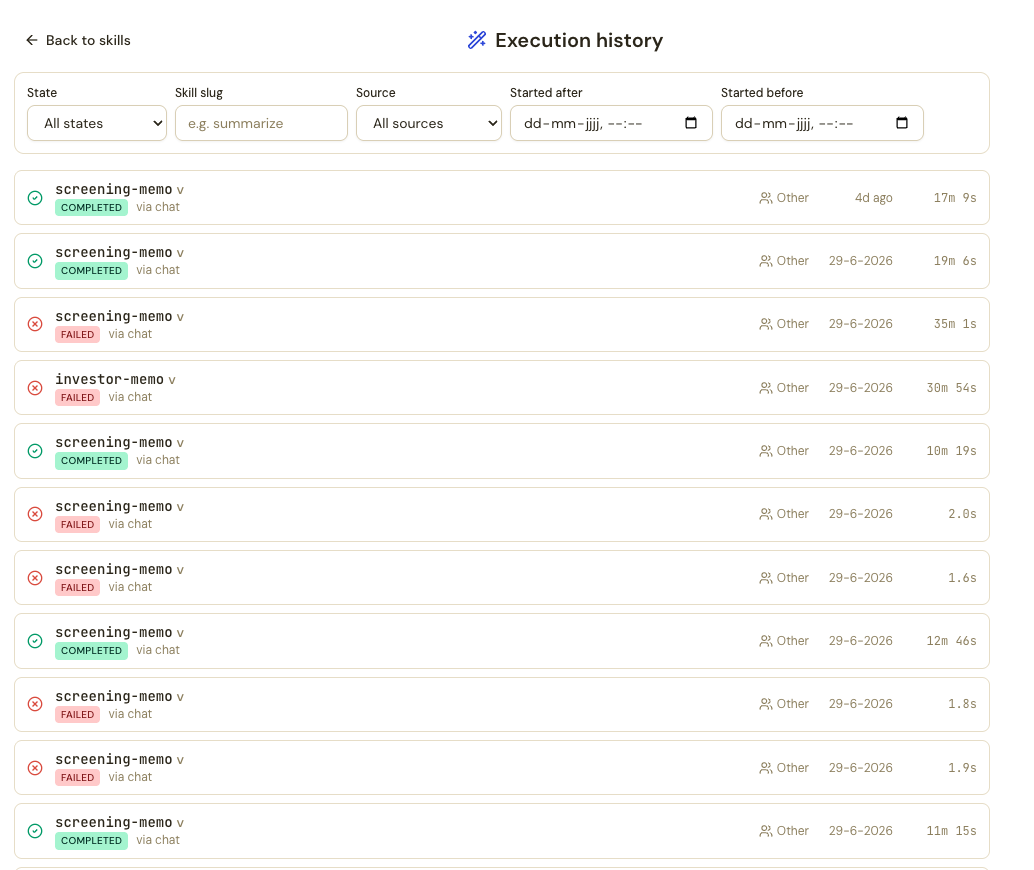
Two useful shortcuts from a run's detail page:
- Run again — reopens the skill's form pre-filled with that run's inputs, so you can tweak one value and re-run.
- Tree view — if the skill invoked other skills, shows the parent run and its sub-runs as a tree.
Recap: type / in chat or hit Run on the Skills page, answer any
questions the skill asks, and collect your outputs and downloads from the
run card or the history page.